GBWhatsApp PRO APK

100MB+ | Updated Just Now | Android 5+ | FREE
Explore GB WhatsApp PRO themes, messaging controls, and Android setup in one place. Give your chats a personal look, learn about commonly advertised features, and find practical information for downloading and updating an APK.
Whether you are researching GBWhatsApp PRO for the first time or looking for a GB WhatsApp PRO new version, begin with the features that fit your daily routine. A comfortable chat layout, useful reply settings, and organised media can each play a part in how you use a messaging app.
Discover GBWhatsApp PRO
GBWhatsApp PRO is a name associated with modified WhatsApp clients and additional interface and messaging options. People searching for it often want to explore themes, online visibility settings, media tools, and automatic replies.
Start with the way you actually communicate. For busy group conversations, focus on readability and notification preferences. For a more personal interface, explore colours and backgrounds. For recurring messages, look at reply tools and how their settings fit into your day.
Popular GB WhatsApp PRO Feature Categories
The features commonly promoted for GB WhatsApp PRO focus on customisation, messaging preferences, and media management. Use the categories below to decide which options interest you most.
Themes, Colours and Chat Backgrounds
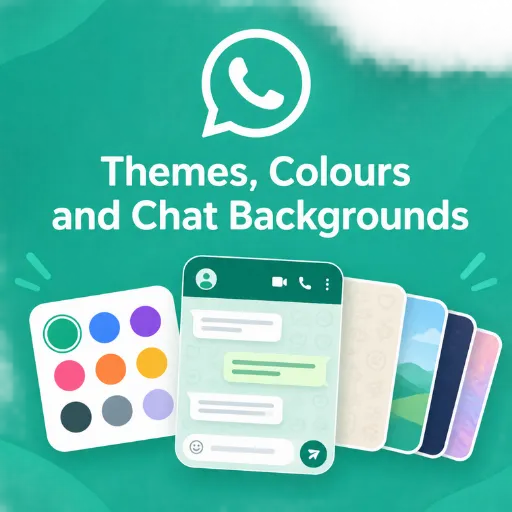
Personalising a messaging app starts with its appearance. Theme settings focus on the overall look, while individual adjustments let you explore details such as backgrounds and message colours.
Choose a simple colour palette and use a background that keeps conversations easy to read. For an understated style, pair a plain wallpaper with a single accent colour. For something more expressive, try a favourite photograph and coordinate the surrounding colours with it.
Fonts and Reading Comfort

Font choices shape how a conversation feels on screen. Look at the size of message text, spacing between lines, and how names appear in the conversation list.
A useful way to assess a layout is to open a long conversation and read several messages at your normal viewing distance. Include a group chat in your review so you can judge how easily you distinguish names, replies and shared links. Choose settings that remain comfortable during longer reading sessions.
Online Visibility and Message Indicators
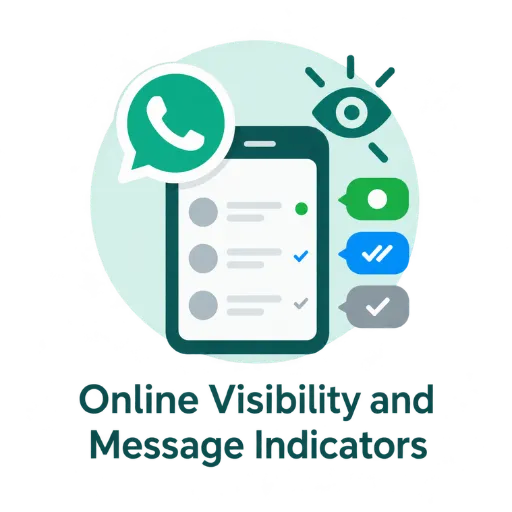
Online activity and read receipts are common areas of interest for GB WhatsApp PRO users. These controls concern the signals people see while you use a messaging app.
Start by deciding how you want to manage your availability. Someone who replies during set breaks may prefer a different arrangement from someone who keeps up with conversations throughout the day. Use a short conversation with a friend to understand how your selected settings appear from the other side.
Automatic Replies

Automatic reply tools focus on messages you send repeatedly. A short acknowledgement can tell someone you have received their message and give them a useful idea of when to expect a response.
Write the reply in your usual voice. For example, “Thanks for your message. I usually reply after 6 pm” gives the recipient a clear expectation. Review the wording regularly so that your reply continues to match your schedule and the people contacting you.
Media Sharing and Status Tools
Media features cover photos, videos, documents and the way shared content is handled. Begin with your main use case, such as sending family photographs, exchanging documents or keeping useful media organised.
Give downloaded files descriptive names and sort important documents into folders you can find later. For photos, compare the received image with the original at the same zoom level. Ask for the poster’s permission before saving and resharing personal status content.
Chat Locks and Conversation Organisation
Conversation organisation is about finding the right chat quickly and choosing how it appears on your phone. Locking and hiding tools address access to selected conversations, while notification settings control what appears when a new message arrives.
Set up these preferences in a deliberate order. Begin with the conversation list, move to individual chats, and finish with notifications. Review the result from your lock screen as well as inside the app so that the overall arrangement matches your preferences.
GB WhatsApp PRO Download Information
GBWhatsApp PRO APK File Details
| File Name | GB WhatsApp PRO APK |
| Version | Latest Version |
| Size | 100 MB+ |
| Last Updated | Just now |
| Total Downloads | 122,000,000+ |
For a GB WhatsApp Pro APK download, begin with the release details. Note the publisher, version number, release date, Android requirement, and file size. Keep that information together so you can identify the package after downloading it.
Use your phone’s Settings app to find its Android version, then compare it with the listed requirement. Locate the downloaded file in your Downloads folder and check its filename before opening it. A clearly named package is easier to distinguish from documents, pictures and earlier downloads.
Installing an APK on Android
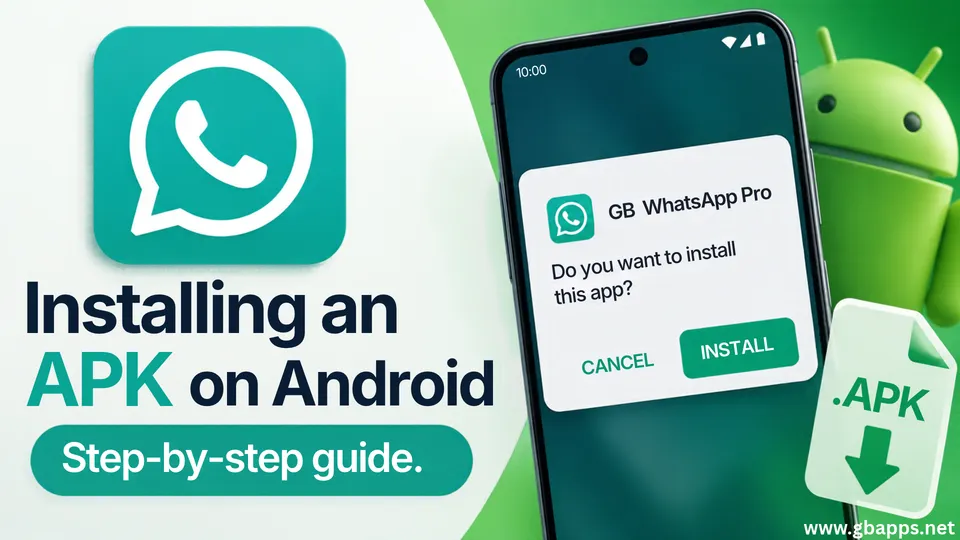
APK is the package format Android uses for applications. Installation from a browser or file manager involves the download, Android’s installation prompt and the app’s own setup screens.
- Download the selected APK and open your Downloads folder.
- Tap the package to begin installation.
- Review Android’s prompts, including the source app’s installation permission.
- Complete the installation and open the app.
- Follow the account setup instructions shown on screen.
- Set your preferred appearance and notification options.
Android provides controls for allowing installations through a particular source app. After completing installation, return to that setting and turn off the permission when you have finished using it. Google documents the process in its Android device guidance.
GB WhatsApp PRO New Version and Update Information
A useful update routine starts with a record of your installed version. Open the app information screen and note the number before reviewing a new release.
Read the changelog to see what the publisher has changed. Focus on the settings and tools you use most often. A change to themes matters to someone who personalises the interface, while an adjustment to media handling may be more relevant to someone who exchanges documents every day.
Keep your download and release notes together. After an update, open a conversation, review your appearance settings, and check a shared attachment to familiarise yourself with the updated app.
Understanding GB WhatsApp Pro Listings
GB WhatsApp Pro is another name you may encounter while comparing downloads. Use the release page to identify the publisher and review the features described for that edition.
Make a short comparison based on your priorities. Include appearance settings, reply tools, media options, and the update history. This gives you a practical way to organise the information you find while browsing.
Frequently Asked Questions
What Does APK Mean?
APK stands for Android Package Kit. It is the file format used to distribute and install Android applications. Opening an APK starts Android’s installation process.
Where Can I Find My Installed Version?
Look in the app’s settings for Help or App Info. You can also open your phone’s Settings app, select the application, and review its information page.
How Should I Choose a Theme?
Start with text readability and your preferred colours. Open an individual conversation and a group chat to judge the design across different types of messages.
What Should I Read Before an Update?
Read the release notes, Android requirements, and instructions for updating an existing installation. Keep a note of your current version and review your saved conversations before making the change.
Leave a Reply